Note:
1) DWM is NOT supported in Windows 7 Starter and Windows 7 Home Basic. Ask user to upgrade to at least
Windows 7 Home Premimum or higher to enable DWM.
2) This is only for Windows 7 users. In Windows 8 and Windows 10, Desktop Windows Manager Session Manager (DWM)
cannot be turned off - it is on by default.
3) Certain old video cards (generally computers from 2005-2006 time frame or older) DO NOT support DWM. These computers
will not be able to play 720P High Definition video anyways, so this is a moot point.
4) If after trying all the steps below, you reach the conclusion that DWM cannot be enabled on the PC, then check that
the correct Video Card Drivers are installed on the PC. Video card drivers can be downloaded from the video card manufacturer's or PC manufacturer's website. If correct video card driver is installed, check that it is the latest version available
on the video card manufacturer's or PC manufacturer's website, if an updated version is available then install it and try to view content.
Checking to make sure that DWM is running properly consists of three steps:
Step 1:
Open the Services control panel.
Click on Start in the bottom left of Windows desktop and type Services as below:
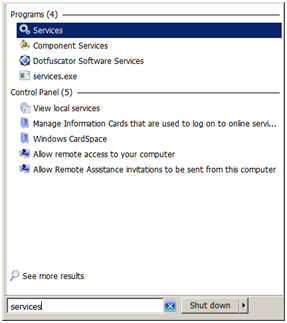
The Services control panel icon will show under Programs above.
Click on Services to open Services control panel as below:
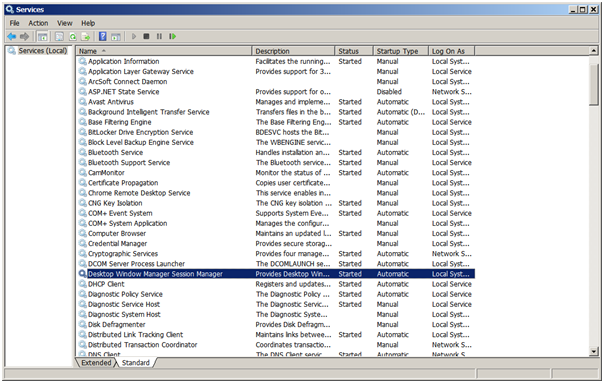
Scroll down to the 'Desktop Windows Session Manager Session Manager' and
make sure that its status under the Status column is showing as Started and
startup type under the 'Startup Type' column is automatic.
If status is NOT Started and/or Startup Type is NOT automatic then follow
below instructions to correct this, otherwise skip ahead to point 2.
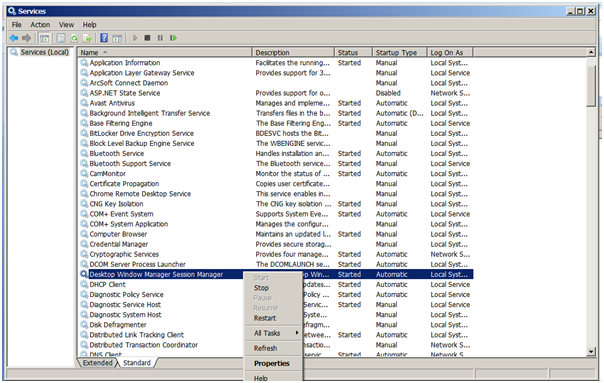
1. i) Right click on 'Desktop Windows Session Manager Session Manager' and select Properties
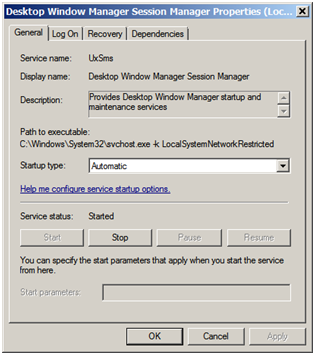
2.ii) If Startup type is not set to Automatic then click on the drop down arrow and
select Automatic. If Service status is showing as Stopped or Paused, then click the
Start button to start the service.
Reboot the computer and re-check to make sure that the 'Desktop Windows Session Manager Session Manager'
status is Started and Automatic as given above.
If the 'Desktop Windows Session Manager Session Manager' is not automatically starting on reboot,
then this is a Windows Installation proble, as user to contact their computer vendor to
reinstall Windows.
Step 2:
Make sure that Windows default Aero theme is selected.
Right click anywhere on the your Windows desktop and select Personalize:
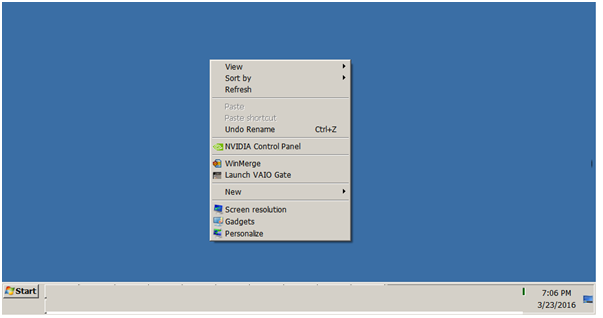
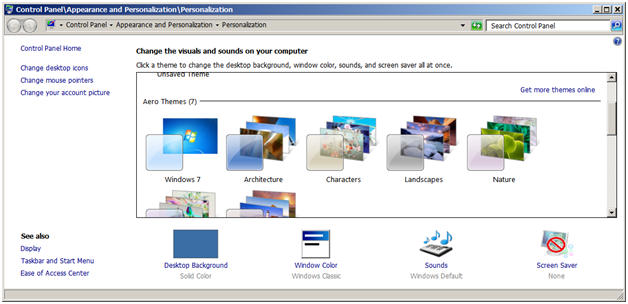
In the window that opens, make sure that any of the Aero Themes, preferably the
first one in the list, is selected as the active theme. If not then select it as
the active theme. Windows will turn grey/pause for a while as the change is taking effect.
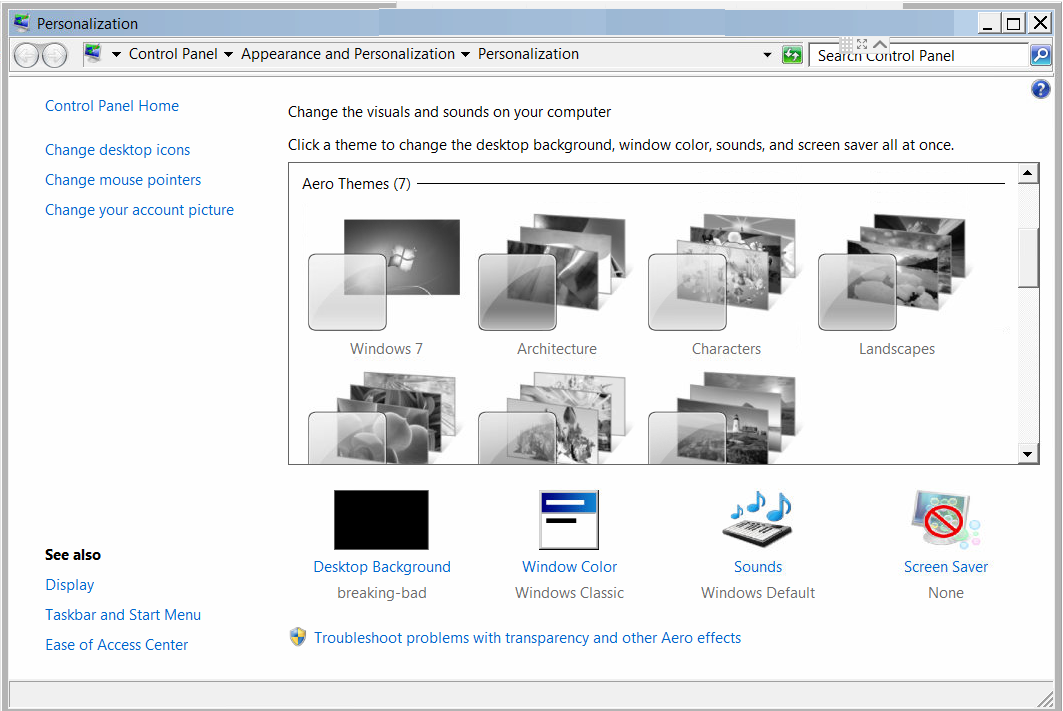
 If your Aero Themes are disabled, greyed out or not selectable, like the following picture,
then your Windows installation is corrupted. Re-install Windows.
If your Aero Themes are disabled, greyed out or not selectable, like the following picture,
then your Windows installation is corrupted. Re-install Windows.
Reboot the computer. After reboot, right click anywhere on the desktop,
select Personalize and make sure that the theme selected is the Aero theme
you selected before the reboot. If not then ask user to contact their
computer vendor to correct this or re-install Windows.
Step 3: Make sure the Destop Window Composition is enabled
Right click on 'Computer' or 'My Computer' icon on desktop.
If there is no 'Computer' or 'My Computer' icon on the desktop then
click on Start at the bottom left of Windows desktop and type Computer in the box.
Right click on Computer and select Properties.
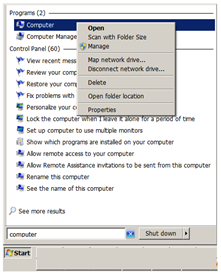
The Computer Properties window should show as below: (note the areas marked with a square)
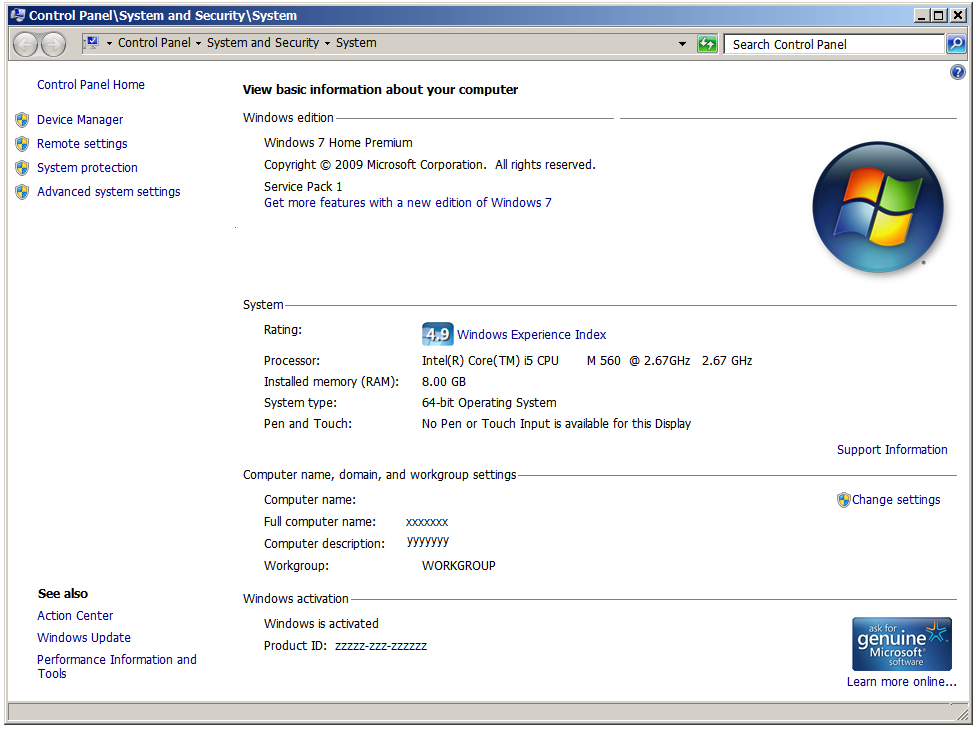
Click on 'Advanced System Settings' and Window like the following should open:
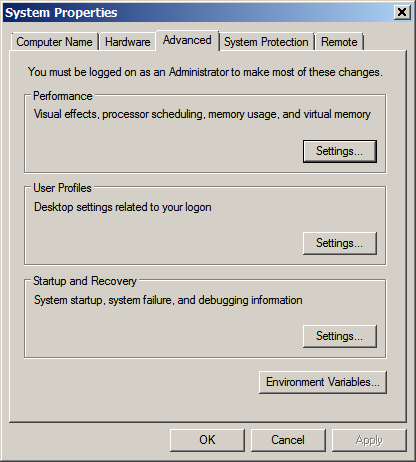
Click on the Advanced Tab and click on the 'Settings...' button under Performance.
A Window like the following should open: The three options 'Enable Aero Peek',
'Enable desktop composition' and 'Enable transperent glass' MUST BE Present
AND Enabled. (If the any or all three options are NOT present, then
ask user to re-install Windows.) If not enabled then click on the Custom radio button and check
the three options:
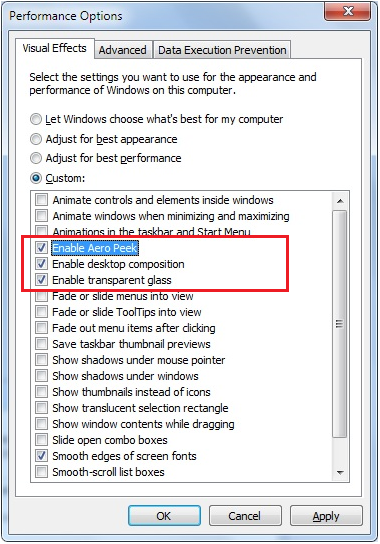
Reboot computer and follow these steps again to verify that the three options
are still enabled after the reboot. If not enabled then ask user to contact their
computer vendor to re-install Windows.
If all goes well till here then DWM is enabled on the computer and videos should play.
