To add Arride set of files to the exclusion list:
You can either add the entire drive to the exclusion list (as explained below)
- OR -
Add individual Arride Exe files to the exclusion list in Steps 8 and 9 below. If adding individual Exe files
to the exclusion list,
then instead of click on the Folder icon in step 8, click on the file icon besides.
Be sure to add
all Arride Exes to the exclusion list if you go with this option.
Steps:
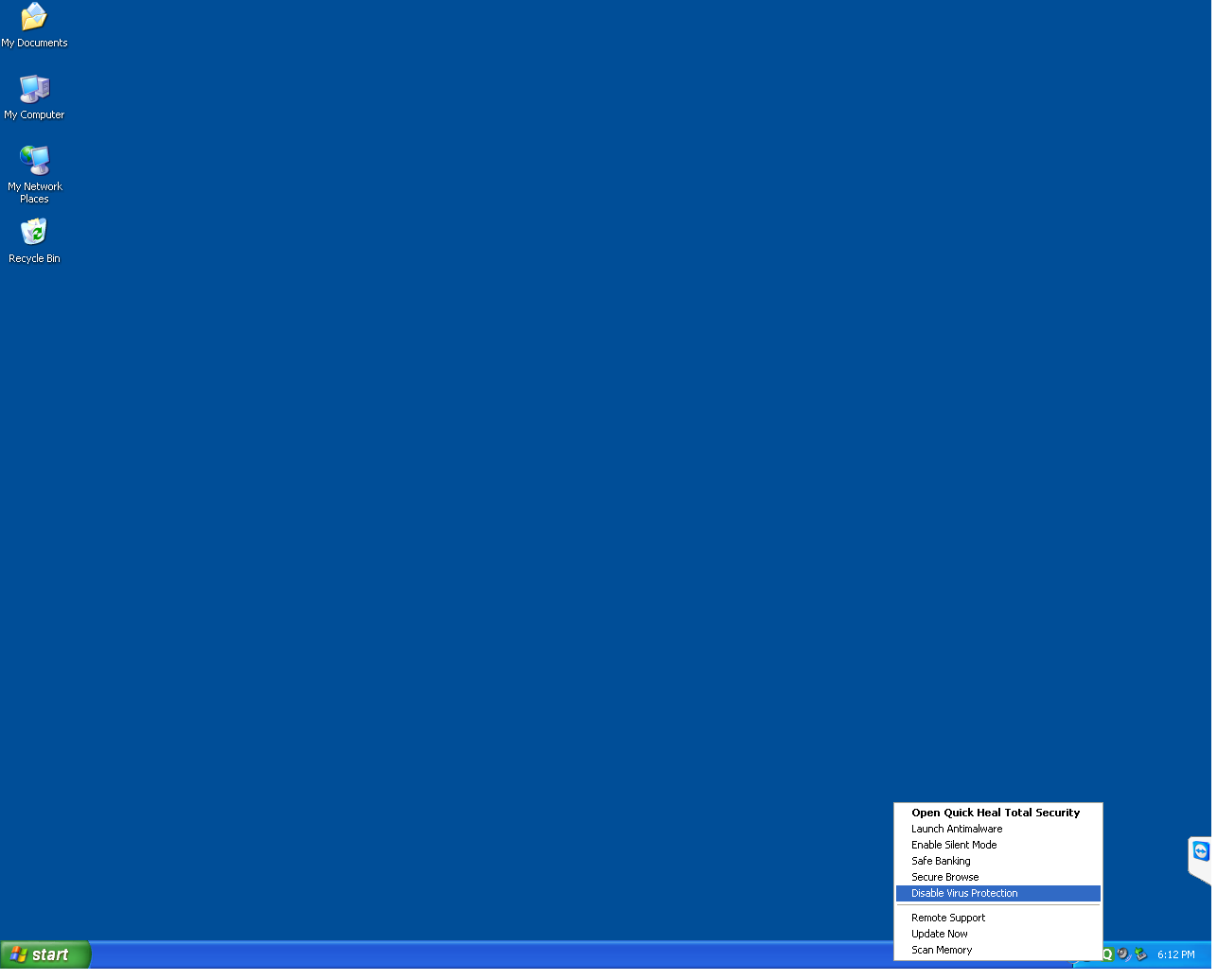
1) On your system, disable Quick Heal by Right clicking on it select 'Disable Virus Protection'
 2)
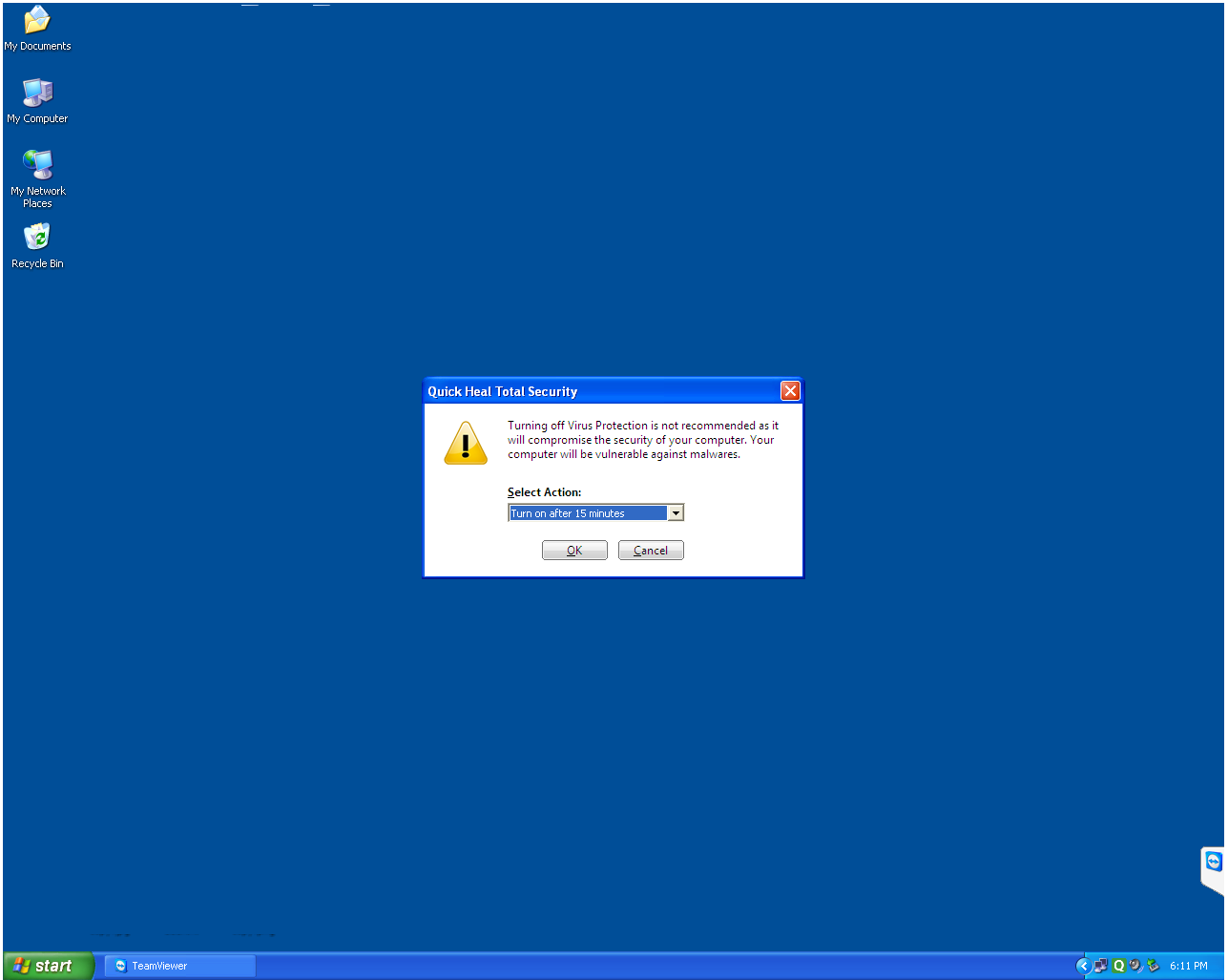
2) Select a time of 15 minutes or greater
 If Arride set of files do not exist on the Pen drive, then unzip the backup.zip file to restore
the files set.
If Arride set of files do not exist on the Pen drive, then unzip the backup.zip file to restore
the files set.
3) Quick Heal main menu shows up
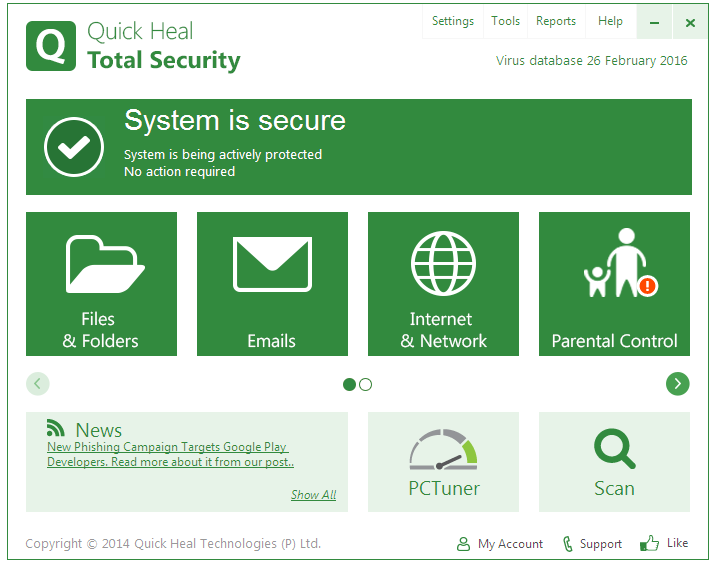
Click on 'Files and Folders' Icon
4) Files and Folders options show up
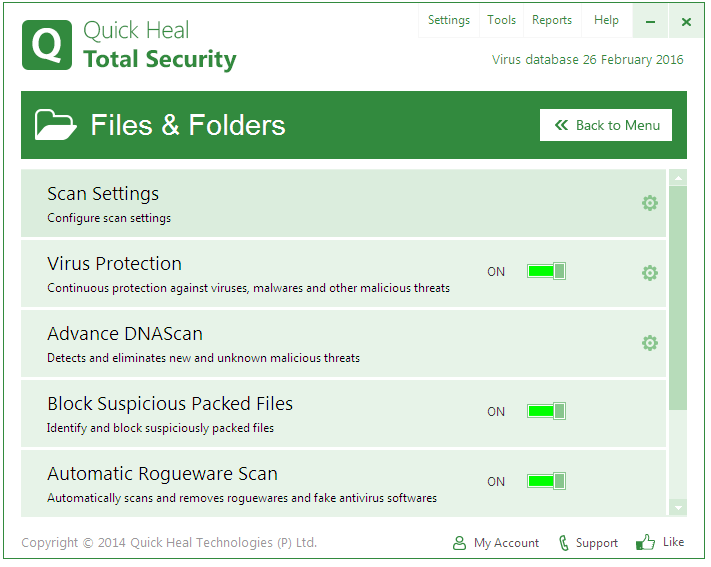 5)
5) Scroll down - 'Exclude Files & Folders' option shows up
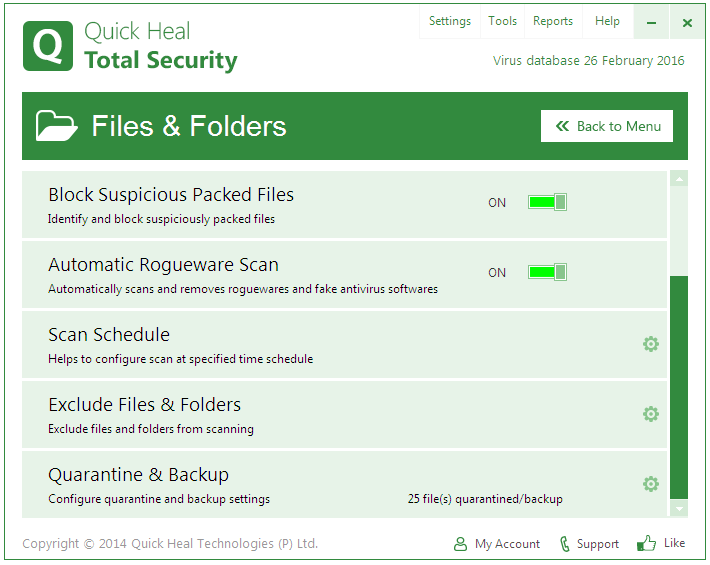
Click on the 'Exclude Files and Folders' option
6) Exclude Files & Folders menu shows up
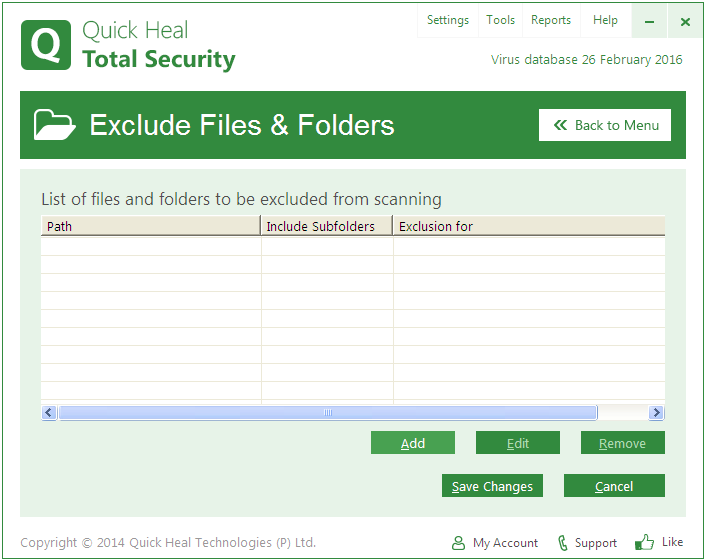
Click the 'Add' Button
7) New Exclude Item popup shows up
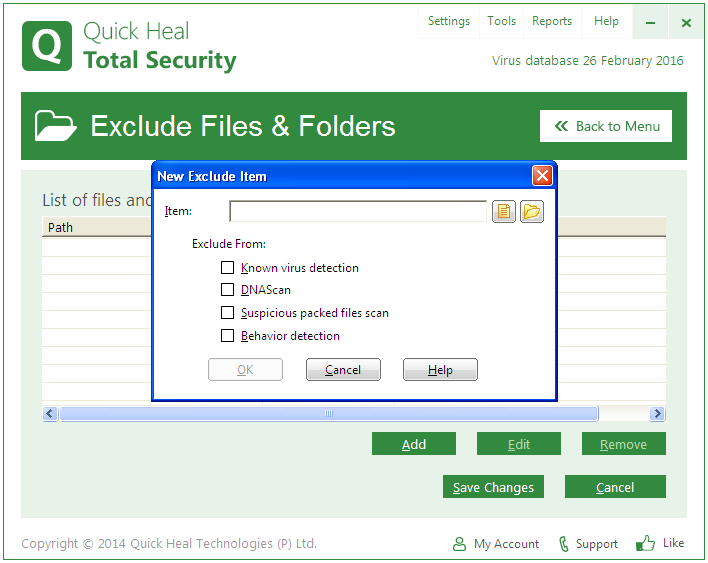
Click on the Folder Icon on the Right Hand Side top of the Popup
8) Browse for Folder dialog shows up
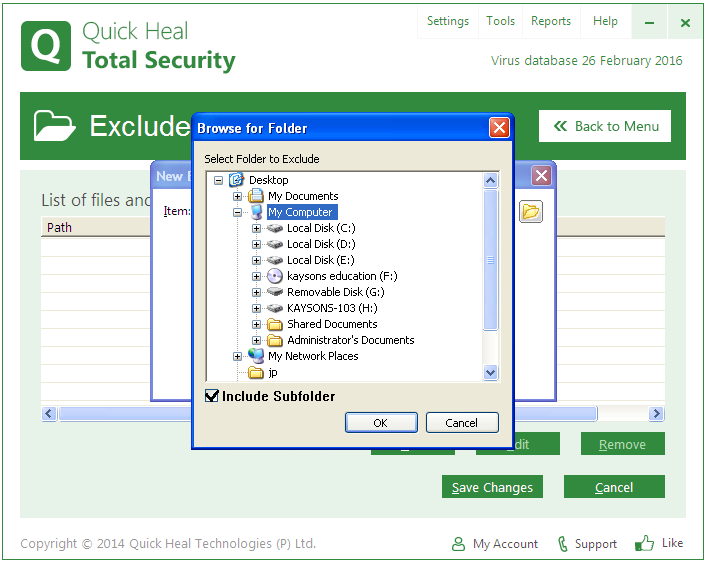
Click on the Drive respective to the DVD/Pen Drive inserted in the system and click OK button.
9) New exclude item popup shows up again with the drive showing
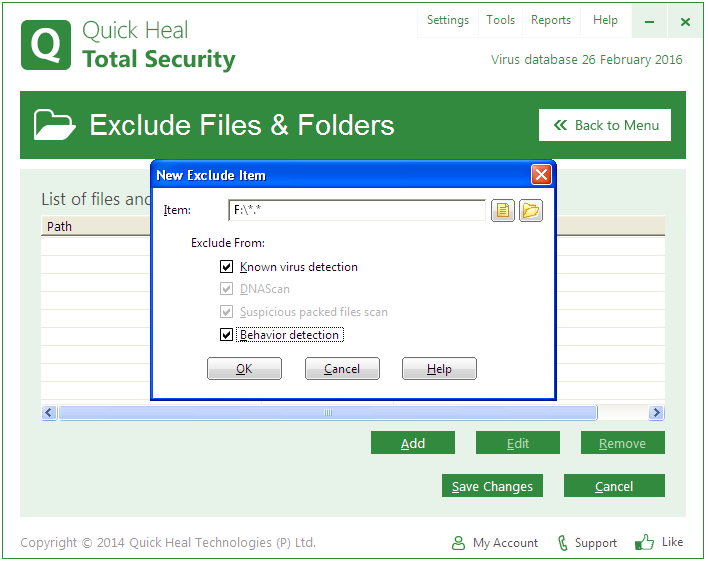
Check all options showing on the screen and click the OK button.
10) The Exclude Files & Folders menu shows up again with the drive showing in the list
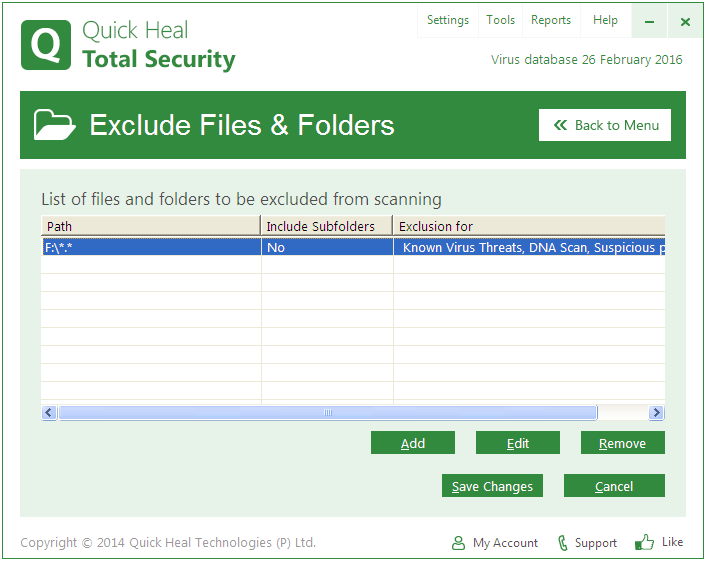
Click 'Save Changes' button
10) The Exclude Files & Folders menu shows up again with the drive showing in the list
Click 'Save Changes' button to exit.
