
Support FAQs
|
Updated: 10th June 2020,
Prior Update: 21st January 2020
Prior Update: 27th November 2019
You can do a Control-F Find on this page to find word/s showing in error messages.
Related Links:
Index of this Page:
1. Virus infection related
1) Quick heal or other anti-virus gives Virus alert for Arride's Exe files
Arride exe files are alredy pre-scanned at virustotal.com to trigger minimal virus alerts, that too
from unknown anti-virus software.
The reasons for virus alerts could be one of the following:
i) Some anti-virus software receive a defective update that suddenly starts giving alerts on exe files the same
anti-virus previously scanned as safe. Quick heal is particularly susceptible to this problem.
ii) Most anti-virus software from developing countries like India, Africa, China etc are poorly written. These are known
to trigger false positives. Also these anti-virus software are not be able to catch many viruses
until it is too late. Thus these anti-virus software end up living side by side with viruses in the system -
both exist together on the system.
The sequence of events when a user inserts a Pen Drive/Dvd with or without Arride's exes on it, in such a
computer is as under:
a) The viruses that co-exist on the computer with these poorly written anti-viruses infect the exe files on the media.
b) As soon as the viruses infect the exe, the anti-virus now 'wakes up' and recognises the exe files on the media as infected
and triggers a virus alert.
Possible Solutions
i) Best solution is to ask user to format the machine and re-install the OS and immediately install a reliable anti-virus like
Avast Free Version - this is a time unlimited free reliable antivirus.
ii)Another possible solution is to ask the user to mark Arride exe files as trusted in the current anti-virus software they are using.
This way the viruses in the system, the poor anti-virus and Arride's exes will all work together side by side.
For Instructions how to mark Exe's as safe in Quick Heal Please Click here.
iii) A less preferred solution is to scan the system using either Avg or Avast bootable free virus scanners. These
are iso files which contain free versions of AVg or Avast. To use these follow these steps:
i) Google search for 'Avg bootable iso' or 'Avast bootable iso'
ii) Download the iso file , burn to a DVD
iii) Insert DVD into infected computer and boot from the DVD and scan the system
iv) Note that depending upon the severity of the infection, a scan like this might make the system UNBOOTABLE.
This will happen if core Windows files have been infected by viruses which the poorly written anti-virus
was not able to catch, but either AVG or Avast bootable was albe to catch and delete.
2) Virus hides files and folders on Pen Drive and marks them as hidden/system
Many viruses hide files and folders and mark them as hidden or system.
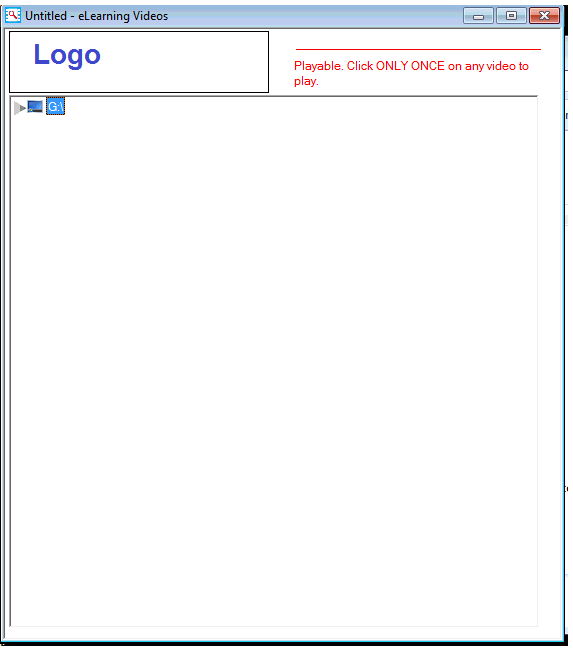
In this case the files and folders will no longer be visible to the Content Browser app.
Screen will look like the following:
Possible fixing method:
Note that not all viruses hide files and folders or mark them as hidden/system in the same manner. The following
recovery scenario is for viruses that mark files and folders as hidden and system.
Open the Pen Drive in Windows explorer, if no files and folders are showing in Windows Explorer, then
Google search for: How to show hidden and system files in [your Windows version]
For example if your Windows version is Windows 7, then Google search:
How to show hidden and system files in Windows 7
Follow instructions from Google search to show hidden and system files and folders.
Windows Explorer should show list of files and folders in ghosted or greyed out form as below.
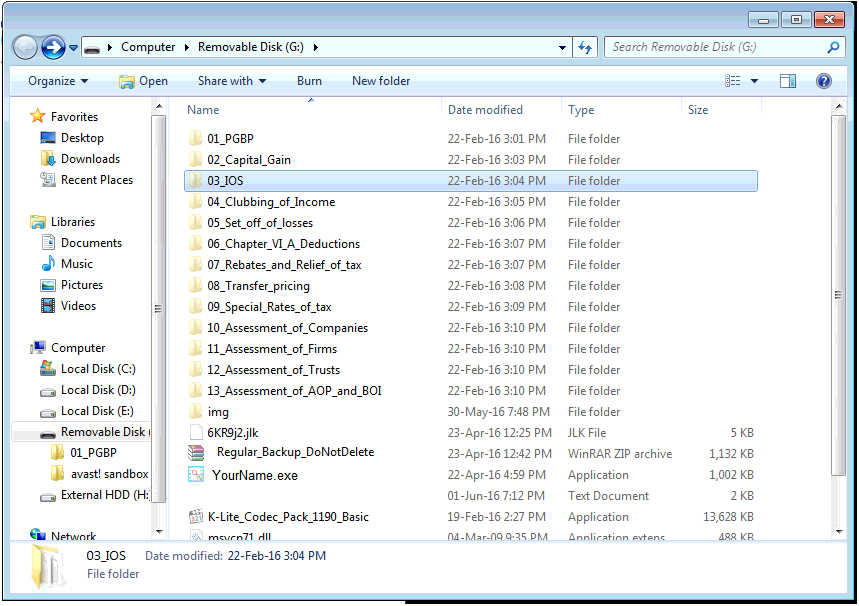
Note that Windows explorer might show all the files and folders on the Pen Drive as were recorded
OR it might just show one folder. If there is only one folder showing, this will be the folder
in which a virus has hidden all the files
and folders. If there is only one folder showing, then open the folder - if there are folders inside folders
(multiple levels of folders) then go inside each folder until you reach your files and folders.
To Right click on any of the files or folders and select properties, you should see the Hidden Attribute Checked:
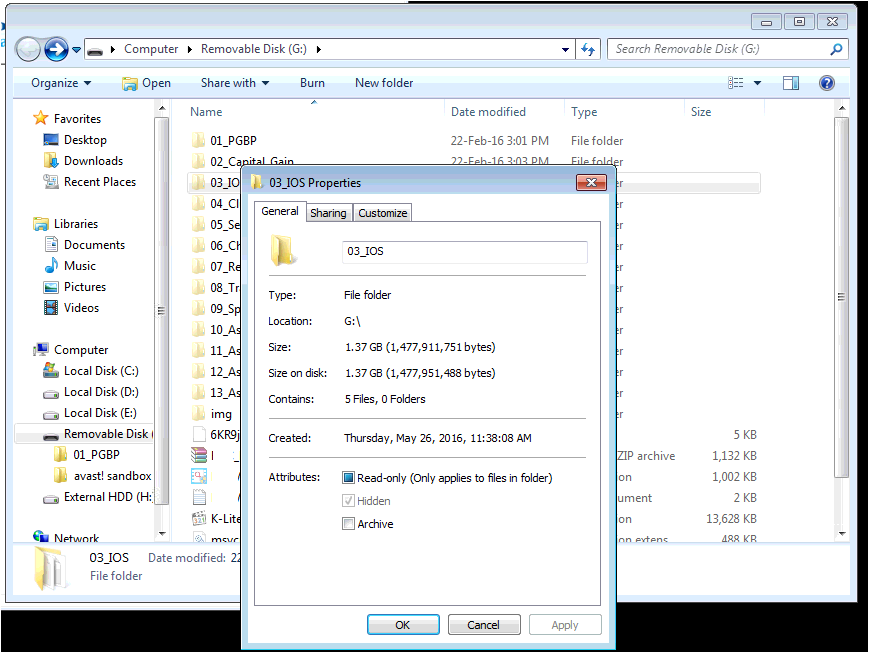
Cut and Paste all the files and folders to the the root of the Pen drive.
To UnHide or UnMark the System attribute on all files and folders:
Open a command prompt by click on the Start menu and typing: cmd
( If in doubt Google: how to open command prompt [your Windows version] )
On the command prompt copy and paste the following:
attrib -h -r -s /s /d [PenDrive]:*.*
Replace the [PenDrive] with the drive letter of the pen drive.
For e.g. if the pen drive's drive letter on the PC is G: then the commang will be:
attrib -h -r -s /s /d G:*.*
Press Enter key to run the command.
Reference from here:
How to remove Hidden and System Attributes of files and folders
The files and folders should appear UnGhosted and Non-Grey in Windows Explorer as below:
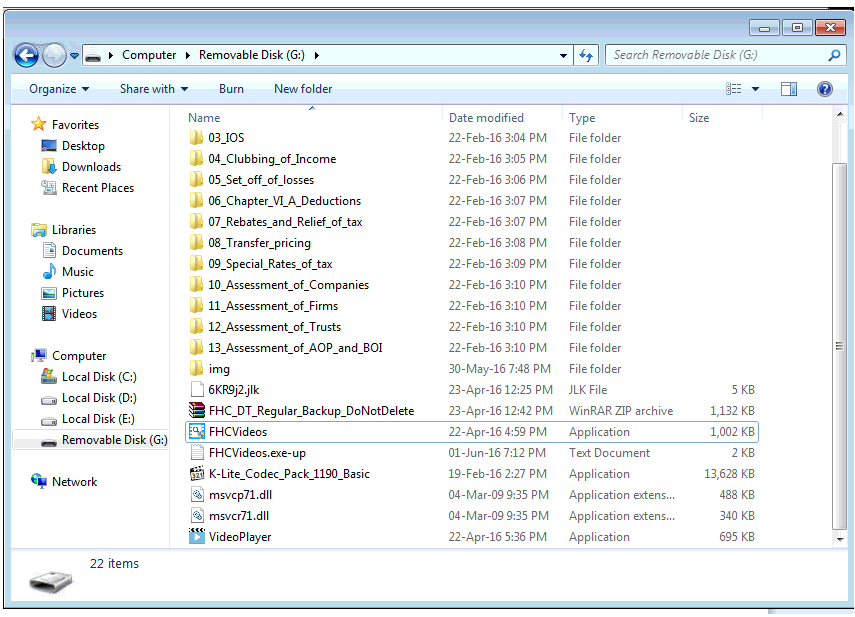
Now with the files and folders UnHidden and UnMarked as System, run the Content Browser app.
The files should be visible in it.
There is another type of virus that converts 'File Folders' into 'Application' type as shown below:
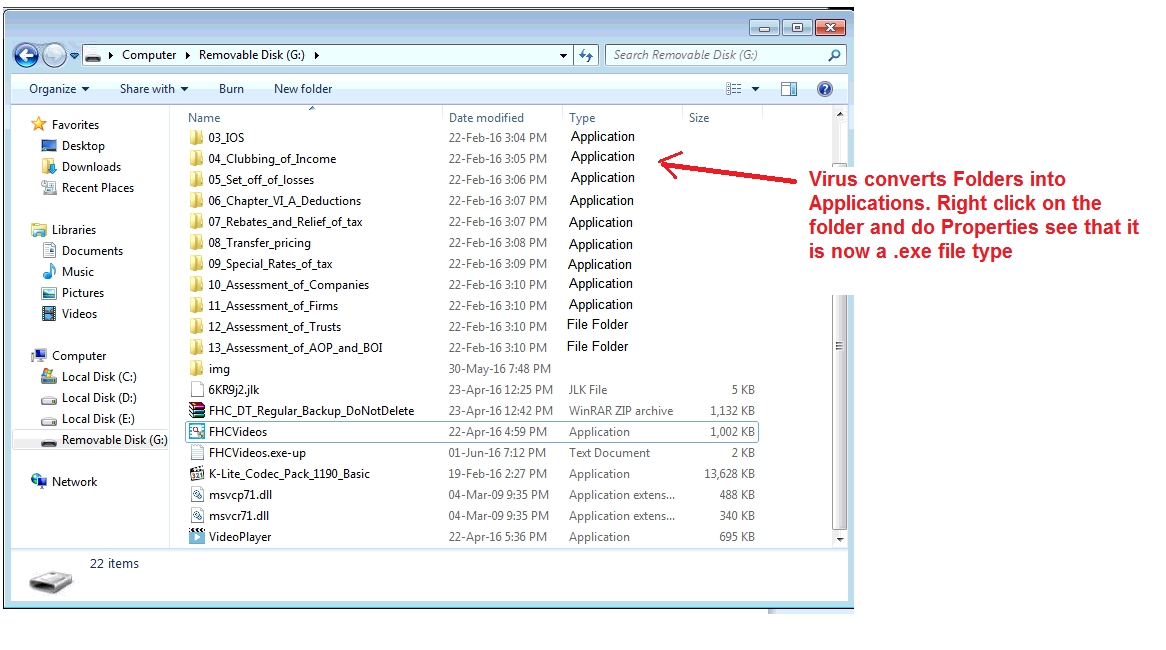
Since File Folders are now Applications, this prevents the files from showing in the ContentBrowser list.
Ask student to get virus/trojans removed from this system and the pen drive/download.
3) An ONLINENT.EXE error like the following shows up:
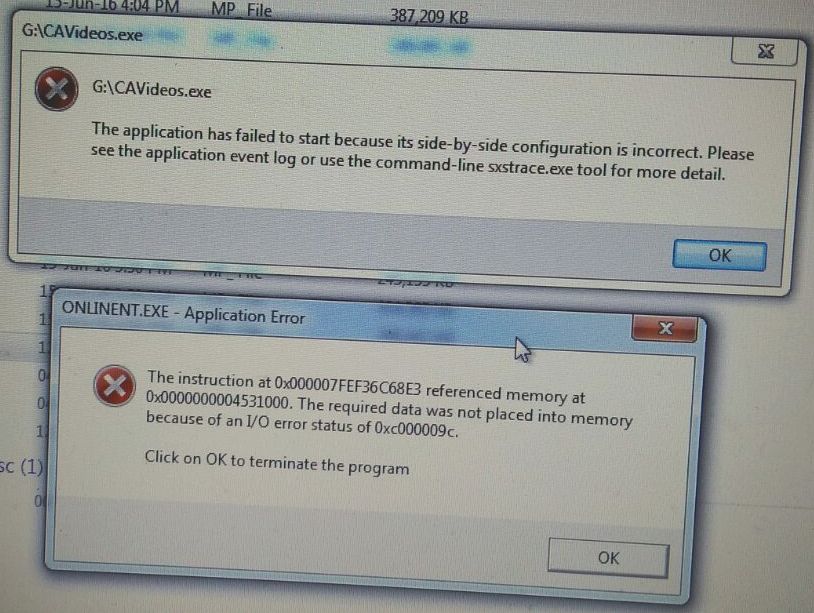
Onlinent.exe is a part of Quickheal anti-virus. From this error it looks like Onlinent.exe inteferred with
Arride's exe and Onlinent.exe itself crashed in the process. Solution is to add Arride's exe to the trusted or
safe list of Quickheal.
Note that some viruses/trojans/malware also bear the same name: Onlinent.exe . If this is the case then adding
to Quickheal's safe/trust list will have no effect and the error will continue showing. In this case download
Avast or AVG anti-virus bootable iso and follow instructions on their websites to scan and remove the virus/trojan/
malware from the PC before trying to run Arride's executables again.
4) In ContentBrowser - When clicking on any video to play - some other software like Nokia PC Suite
or any other starts. VideoPlayer does not start.
This is due to malware/trojan/adware hijack. Run sofware like CCCleaner, MalwareBytes etc.
to remove malware/trojans/adware and their related after effects.
2. For Activation based software
1) Date/Time Mismatch error:
The following or similar error shows up in Arride's Activation based security technology:
(Note error is applicable only to customers using activation based technology)
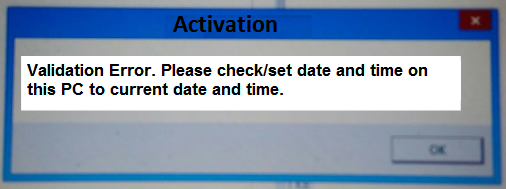
This message comes up in the following two known scenarios:
1) If the Date/Time on the activation PC is more than 10 minutes + or - the current time.
Solution, please set the PC time to current time - note a 10 minute + or - leway is allowed
by the system, but ask the user to set the time to the current minute.
2) If the Date/Time setting on the activation PC is in 24 hour format. e.g.:
Instead of 6:20 PM, the time is set showing up as 18:20 in the Windows clock.
Ask the user to select AM/PM time format on thier PC.
3) Make sure that the Date/Time set on the system is correct for the Time Zone selected on the system.
For e.g. if Time Zone set is "India - Kolkatta, Chennai...", then make sure that Date/Time
showing up in Right Hand Bottom in Windows is correct for Indian time zone and in AM/PM format.
As another example if Time Zone setting is "US Mountain Time", then make sure that Date/Time
showing up in Right Hand Bottom in Windows is correct for US Mountain Time.
Note that the Date/Time WILL BE different for Indian/Mountain time as different places on the earth
have different Date/Time , AT THE SAME TIME.
That is why the New Year fireworks start from NewZealand first, then Australia, then Asia, then Africa
and so on. As NewZeland Date/Time is ahead of everyone else, it enters New Year i.e. 1st Jan before
everyone else, while everyone else is still in the 31st of Dec.
2) Windows "User Account Control (UAC)" or "Run as administrator" permission Popup not showing for activation based clients
-OR-
Clicking on video to play brings up message: "Not able to maintain play count, please check write protect status.."
These two symptoms occur if Windows User account control - UAC is not working.
A "User Account Control (UAC)" or "Run as administrator" Popup looks similar to this:
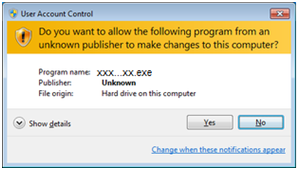
Possible solutions:
1) Try right clicking on the exe and selecting 'Run as administrator' from the context menu. If this brings up the 'Run as administrator' UAC prompt and then clicking on the video plays the video, then ask the user to right click and run as administrator
from now on.
2) Option 2 is to ask user to log off from Windows and log back in as an administrator and try running the exe either directly or by right clicking and selecting 'Run as administrator'. If this works then ask user to do this from now on.
3) If the above 2 do not work then ask user to get the 'User Account Control' in their Windows installation corrected from their computer provider, or,
re-install Windows and log on as administrator from then onwards.
4) Steps to try to fix UAC (User Account Control) Popup not showing:
In Windows go to Start -> type user account control -> the best match will be the Change User Account Control setting option -> press Return (Enter). If User Account Control settings do not show up, then Google search: "How to open User Account Control Settings in (Your Windows Version)" and follow the instructions.
Make sure you reach a screen similar to the following:
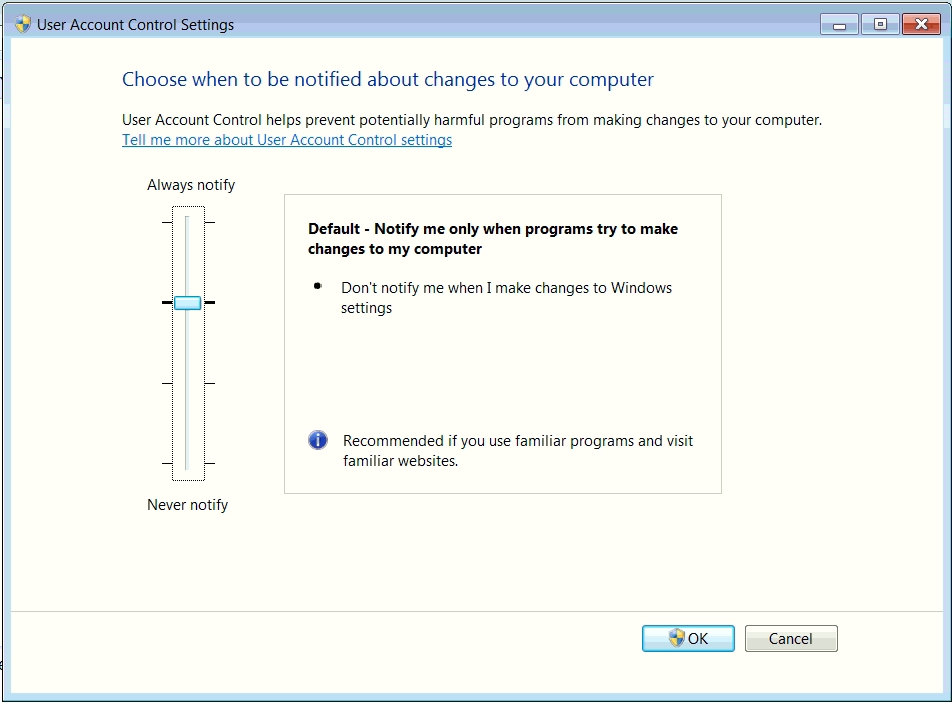
Make sure that the slider is at the 2nd from top level, if not move it to the 2nd from top level and click ok.
You might be asked to reboot by Windows. Even if not prompted for reboot, please reboot the system.
Now double click ContentBrowser.exe - UAC prompt shoud show up.
3) Video Player Crashes with message similar to: Video Player has stopped working. Windows can check online for a solution...
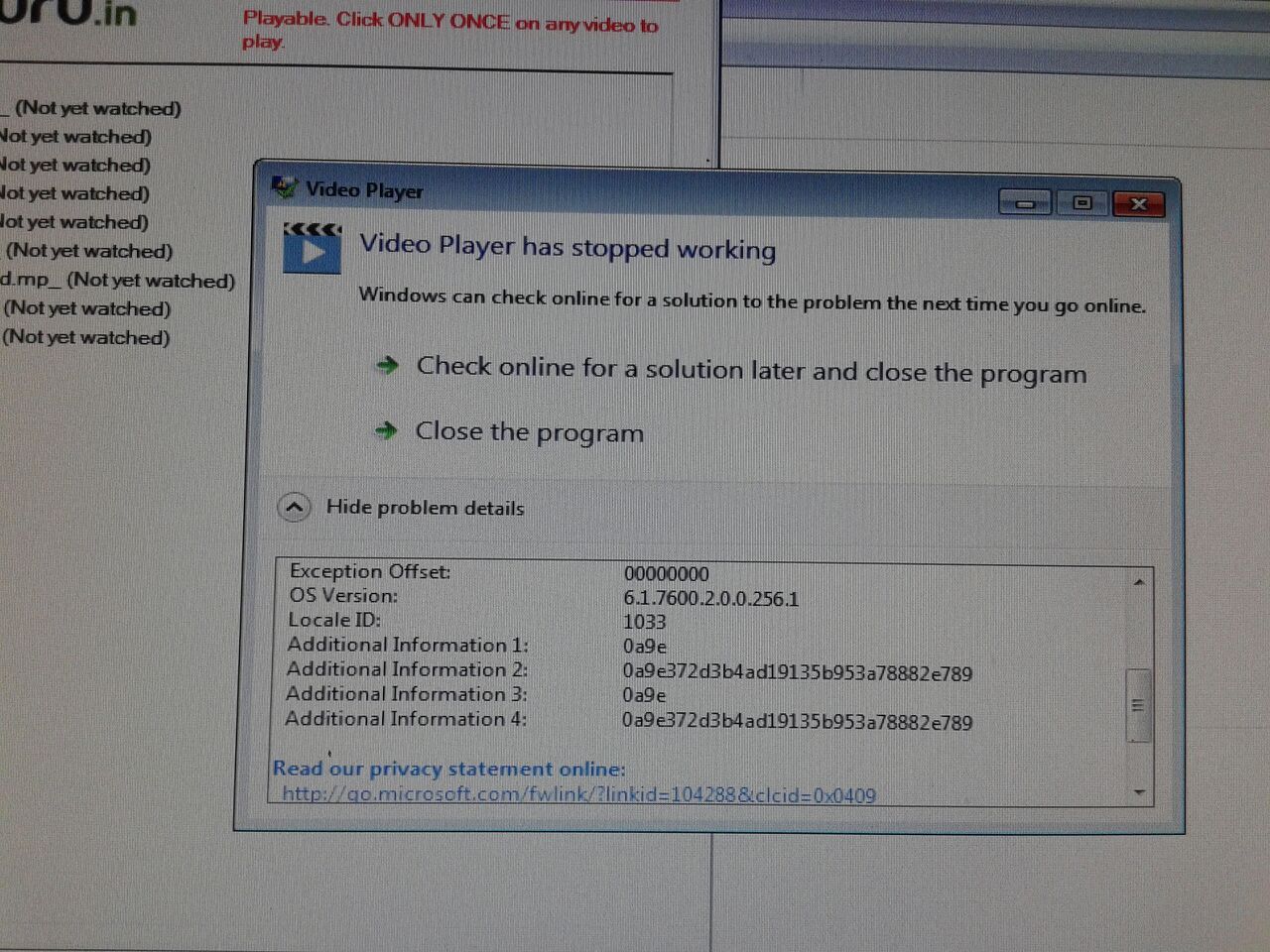
Possible Reasons:
-
The No.1 posible cause of this is when no User Account Control (UAC) prompt shows up on running ContentBrowser.
When running ContentBrowser - the User Account Control (UAC) popup MUST show up. If it doesn't then VideoPlayer
might throw this error after user clicks on video to play.
Solution for this: Ask user to ensure that User Account Control (UAC) Popup shows up by logging in as administrator
on the PC. If user does not know how to login as administrator then ask user to contact their computer vendor.
If user claims that he/she is logged in as administrator, then something has gone wrong with User Account Control (UAC)
settings in Windows. Ask user to contact their computer vendor to correct.
4) "Error More than 15 days from previous activation. Contact Support. Msg 2900. Content Browser Message 2100"
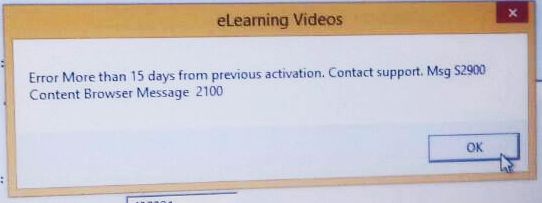 This is an intentional check message and not an error message.
Arride's technology by default allows re-activation of the same content using the same serial number
on the same PC. This is a facility that the technology provides
since a content set and a serial number are limited to one PC. So if a user's system crashes, or he
formats his hard drive and re-installs windows, or he does a system restore / factory restore
using the computer manufacturer
boot options, then the user should be able to re-activate on the same system again
using the same serial number.
It was found that a very small number of users were abusing this facility by repeateadly formatting their systems or doing a
factory restore in an attempt to reset view limits.
This 15 days error message is intended to prevent users from abusing the facility provided to them
by the technology by formatting their hard disk again and again or doing any of the actions
mentioned above.
This 15 days message gives you the content publisher,
some insight and some control over repeated content activations by end users.
Normal end users should not need to format their system and this error message should not
normally show.
Warning: Before allowing a user to re-activate using the same serial number, please check
whether the content is actually activated on the PC the user is trying to activate on
using the ResetTool.
Note that expiry date does not change even if you allow the user to activate the content again
from the backend. The exiry date remains the same as the expiry date from the 1st activation using
this serial number.
5) "This media recording appears to be bad or corrupted. Please contact support. Content Browser Error. D1010"
This error shows up if a user has activated using ContentBrowser.exe - Twice - once as a normal user and
once as an admin.
Situation could have been as follows: The user was probably logged in as a non-admin in the first activation attempt
and did not see the User Account Control (UAC) prompt, the user activated the content. The user shut down the computer and logged in as
an admin the next time. On running ContentBrowser.exe the user was prompted for activation again as the
previous activation was for a non-admin user.
User ran ContentBrowse.exe again. saw the UAC prompt -> clicked yes, was prompted for activation again
and activated.
Now the user has two activations on his PC with two different Windows user accounts.
The above error is because of this reason.
Resolution: Copy ResetTool to user PC. Run reset tool both as non-admin and as admin.
In both casses verify that content was activated on the system or not. If activated then
de-activate the content from the system both as non-admin and as admin.
ResetTool will give appropriate messages to indicate whether both the activations were deleted
or not.
After both activations are deleted, run ContentBrowser.exe make sure admin UAC prompt shows up
and activate again. If admin UAC prompt does not show up then follow UAC correction steps and then activate.
6) "This Media cannot be viewed on this PC. Content Browser Error. D1090 " - OR -
"This Media cannot be viewed on this PC. Content Browser Error. D1150"
Warning! This is a hacking attempt by the end user.
The scenario could be the following: The user activated the content on another computer and copied
the entire C drive to this computer or created an image of the C Drive and restored it on this computer.
Arride's Technology detects this hacking attempt and blocks the user.
Resolution: Copy ResetTool to users PC. Run reset tool both as non-admin and as admin.
Both as non-admin and admin click the buttons 'Detect Content Sets Activated on PC (OLD)'
and 'Detect Content Sets Activated on PC (NEW)'
Verify whether activation shows up for the Content Set/Serial Number combination.
The chance is almost Nil that the Content Set/Serial Number combination will show as activated.
Inform user that content has not been activated on this PC and that the user should use the
Pen Drive/DVD/Download etc on the PC on which he has activated it.
3. Windows Software and Windows Installation Related
1) Black window shows up while playing video or video does not play?
Make sure that Windows media player is properly installed. Windows Media Player 9 and above is required
and Windows Media Player 11 or above is preferable. Please install/reinstall Windows Media Player 11 or above for
your Windows version. Try to play a wmv (windows media video) file by downloading from the net in Windows Media Player
to test whether Windows Media Player is properly setup.
2) Black window shows up while playing video on Windows 7?
Make sure that the "Desktop Window Manager Session Manager" service is running.
To check goto Start -> Type 'Services' without quotes in the search programs area
-> Open Services control panel -> Scroll down to locate "Desktop Window Manager Session Manager"
Service -> Ensure that it is started.
3) Video Playback Window does not show up, only the video controls show up?
Check that DirectX drivers for Video Card are properly setup:
1) In Windows open a command prompt and type dxdiag.exe and press enter.
2) Check the various tabs for errors.
3) Give special attention to the Display tab. See Notes at bottom of Display tab.
4) If any errors in DirectX, video will not play.
5) If any errors shown, Reinstall video card drivers. Reboot.
6) After Reboot run dxdiag.exe once again and make sure that no errors are shown atleast in Display tab.
4) Content Browser does not start or for activation based Content Browser DVD/Pen Drive does not activate?
Ask user to try to run Content Browser as an administrator. Some Windows versions 7 and up, have user account
control (UAC) preferences. These get corrupted on some machines, requiring a higher privilege level for
the Content Browser to run properly.
5) Video Player does not start or shows 'unable to play video error'?
Ask user to try to run Content Browser as an administrator. Consequently, when user clicks on a video to play it,
Video Player will also start as an administrator. Some Windows versions 7 and up, have user account
control (UAC) preferences. These get corrupted on some machines, requiring a higher privilege level for
the Content Browser and consequently Video Player to run properly.
6) Video Player shows error 'Please install Window Media Player version xx or above'
Please install the respective Windows Media Player from the Microsoft website. If using Windows 8.1 N editions, the Windows Media Player is a little hard to find using google. The link for which is here: http://www.microsoft.com/en-us/download/confirmation.aspx?id=40744
. Open the link and select 32bit/64bit edition of your Windows 8.1 N edition and download and install the respective Windows Media Player.
7) When clicking on a Content File Name in ContentBrowser - Nothing happens.
Content player like VideoPlayer, FlashPlayer etc DOES NOT START.
No error message of any kind shows up, the ContentBrowser appears to refresh itself.
This is a Windows UAC (User account control) related issue. One of the following possibilities exist:
- The user IS logged in as administrator BUT ContentBrowser is NOT able to run as administrator
even after the UAC Yes/No Prompt shows up.
Solution: Right click on ContentBrowser and select 'Run as administrator' to run the exe.
Click Yes on the UAC prompt, then single click on the content item. Content item should
start playing by loading the respective player.
- If the above step fails, then user is NOT logged in as administrator. Ask user to log off
and log back on as an administrator.
- Alternatively, ask user to double click and run the content player executable like VideoPlayer.exe,
FlashPlayer.exe etc. Check to see if the following warning message shows up:
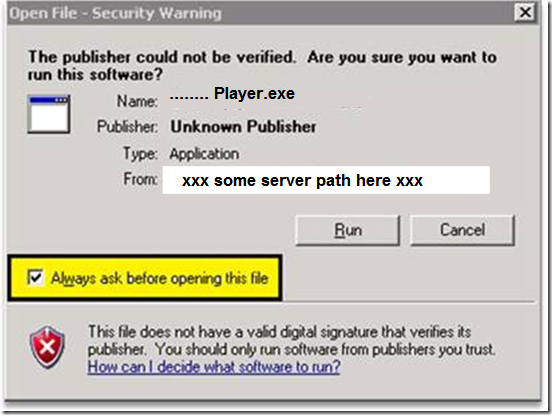
If the above Unknown Publisher warning message shows up, ask user to UNCHECK 'Always ask before
opening his file' and the Run Button. The content player will give a Bad Path or some other error.
Click OK to close the error message. Now go back to ContentBrowser and single click on the file
you want to view. File should start playing.
Note: This issue can particularly affect Download and Play Offline method of content delivery,
as any exe file downloaded from the internet is regarded with suspicion by Windows, prompting
the above warning message.
-
This issue also shows up when the exe's are being run from a network drive. Network drives begin with a \\
e.g.: \\WMWare.... \\192.168... \\PCname....
Solution is to NOT try to play content from a network drive. Try to play content from local drive.
8) ContentBrowser/VideoPlayer show error: Not able to maintain play count, please check write protect
status on C Drive. Exiting...
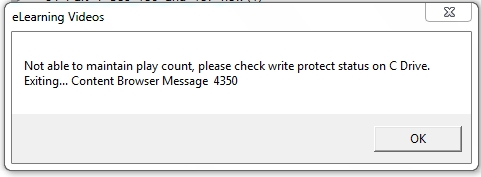
This error shows up because of any of the following reasons:
- User is not logged in as administrator to the PC.
Resolution is to check whether user is logged in administrator and ask user to login as administrator if not.
- The 'User Account Control' Prompt did NOT show up when ContentBrowser was run.
This could happen if the user is not logged in as administrator.
Resolution: Ask user to login as administrator. If user is already logged in as administrator
ask him to try to Right click on ContentBrowser and select 'Run as administrator'
- Virus's/Trojans/Anti-Virus software have locked the C Drive of the PC.
Resolution: Ask user to remove viruses/trojans or bad anti-virus software and install Avast or Norton anti-virus.
9) "The application requested the Runtime to terminate in an unusal way":
When you run ContentBrowser (or try to play a video) this error shows up.
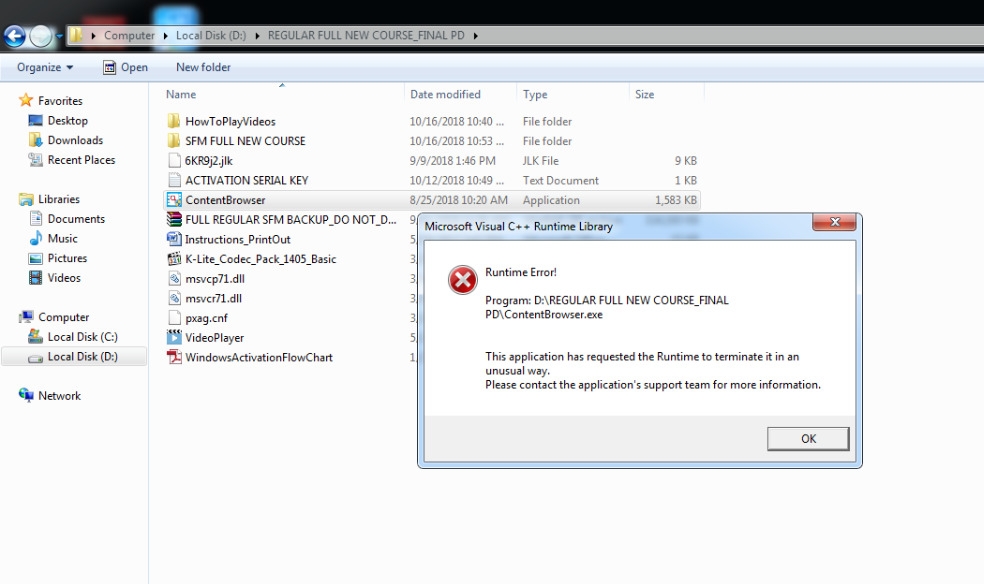
Reasons could be the following:
1) Incorrect VC++ 2005 Redistributable Installed
2) Damaged Windows Install (Specifically damaged WMI in Windows) - ask Student to contact local computer shop to either format the system - OR - ask computer shop to run command: sfc /scannow (DO NOT Run this command yourself)
Solution:
Solution of 1) Goto Add/Remove Programs and Uninstall one or more "Microsoft Visual C++ 2005 Redistributable/s".
Please note the number 2005 - only uninstall the one with 2005 in its name.
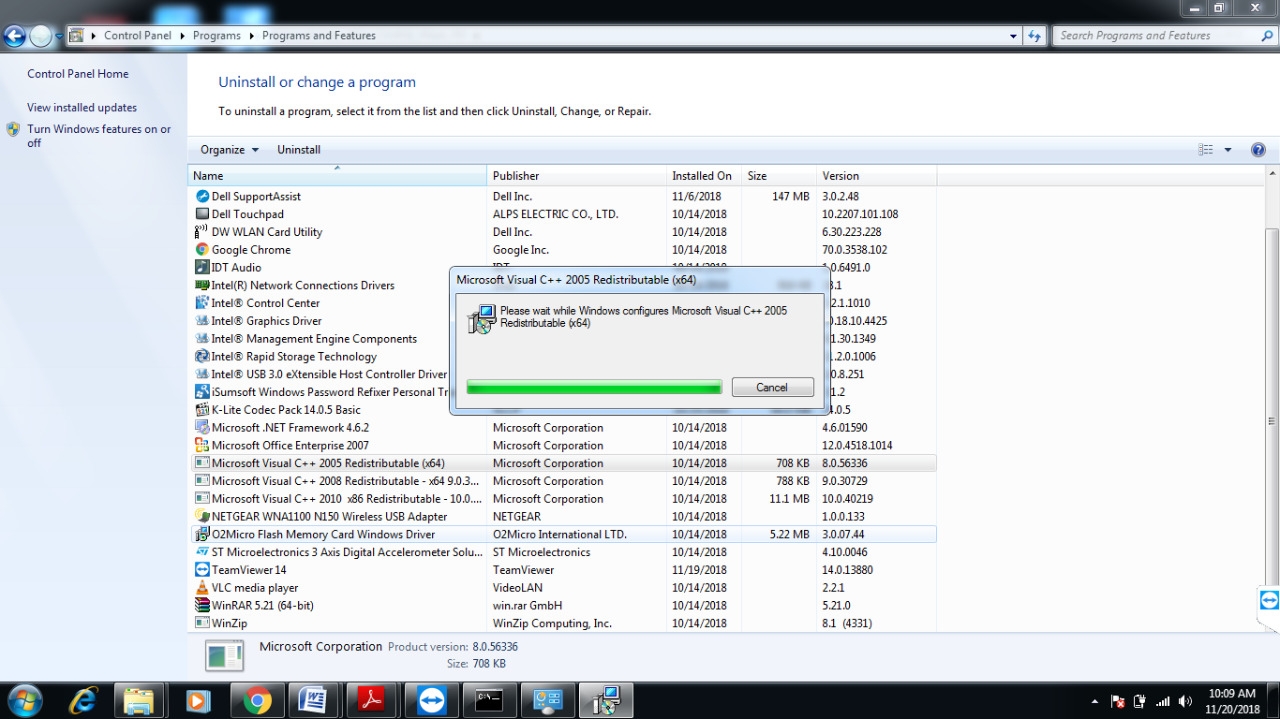
Rerun ContentBrowser or try to play a video.
Additional Details of this error are at this link:
The Application has requested the Runtime to terminate in an unusual way.
Or you can simply google search for: The Application has requested the Runtime to terminate in an unusual way
to get more details.
10) BEX (Buffer overflow exception) error code: c000000d
When you run ContentBrowser (or try to play a video) this error shows up.
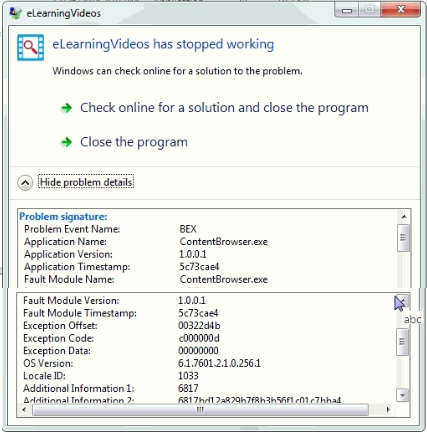
This error occurs extremely rarely, 1 out of 10,000 (ten thousand) students might get this error.
As per our analysis this error is due to a damaged Windows installation.
This error might occur during fresh activation - OR - even on computers on which ContentBrowser/VideoPlayer
we running before (as the Windows install got damanged after activation).
System format and Windows re-install is the recommended solution.
For those interested, indepth details are available here:
Data Execution Prevention
11) Content Browser goes in the background in Task Manager. No Content Browser window shows.
- OR - some time after starting Content Browser the following window shows up with title: Server Busy:
"This action cannot be completed because the other program is busy. Choose "Switch To"
to activate the busy program and correct the problem.
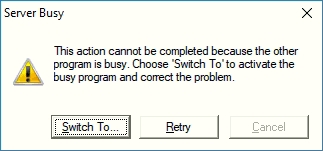
This error occurs extremely rarely, 1 out of 10,000 (ten thousand) students might get this error.
As per our analysis this error is due to Malware on the system or damaged Windows installation.
First ask student to scan the system using malware removal tools (these are Not anti-virus software)
like Malwarebytes, CCLeaner (be aware of adware in CCLeaner) - OR - ask student to goto the local computer shop to get
the system scanned with malware removal tools.
If this does not work ask student to format the System and re-install Windows.
12) When clicking on a video to play in ContentBrowser the following error shows up
Window Title: Werfault.exe
Error content:
"The instruction at 0x00..... referenced memort at 0x00...... The required data was not placed
into memory because of an I/O error status of 0x0....
Click ok to terminate the program.
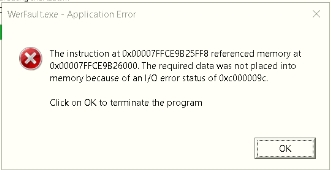
This has been fixed once by running sfc /scannow.
Open a command prompt as administator.
Then run the command: sfc /scannow
This command can take a while finish - about 30 minutes.
Restart the computer after the command finishes.
Retry playing the video.
If still not fixed ask student to format the system and re-install Windows.
13) When starting ContentBrowser Message like this shows:
"Unable to get system configuration xxxxx"
Where xxxxx is an error number.
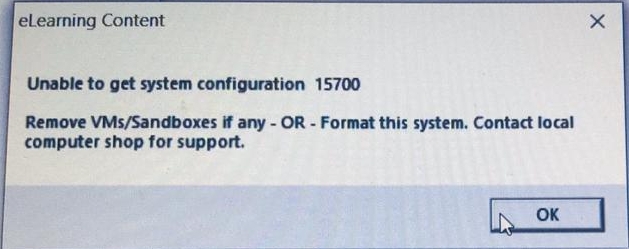
Following is a list of error numbers (the xxxxx in the message) and their meanings:
1) 15200, 15100, 15000 and 14900 -> Audio card/audio driver is not accessable. Check if audio card is working in the system. Try to play music and ensure that audio is heard from the speakers.
2) 15300, 15400, 15500, 15600 -> Graphics card drivers are missing or corrupted.
3) 15700, 15800, 15900, 16000 -> Processor information is not accessable.
To try to fix the above errors open a command prompt in admin mode and run the command: sfc /scannow
This command can take a while finish - about 30 minutes.
Restart the computer after the command finishes.
Rerun ContentBrowser and see if the errors are gone.
If still not fixed ask student to format the system and re-install Windows.
14) While playing lectures screen starts blinking continuously on the student end.
The screen also blinks continuously on the student side when accessing the
system using remote access programs like Anydesk, AmmyAdmin, Teamviewer etc.
To Resolve Try:-
1) Open the User Account Control 'UAC' Settings Control Panel.
2) Lower the UAC to the bottom => Move the slider to the bottom.
3) Click the 'OK' button.
4) Restart the system once.
5) Try to play a video in ContentBrowser/VideoPlayer.
15) While clicking on Activate Button or the Get OTP button
the following error shows:
"Error connecting to Activation servers. Please check PC Date and Time,
Try to open website like news.google.com etc"
To Resolve Try:-
Open CMD as admin and execute the following commands 1 by 1
* Type "netsh winsock reset" hit enter
* Type "netsh int ip reset" hit enter
* Type "ipconfig /release" hit enter
* Type "ipconfig /renew" hit enter
* Type "ipconnfig /flushdns" hit enter
Then Restart the system
If Still Not Resolved try running SFC /SCANNOW
Wait for SFC /SCANNOW to finish
Restart the system.
16) On running ContentBrowser the following error shows:
Added 21st Jan 2020
"Unable to get system configuration 14200.
Remove VMs/Sandboxes if any - OR - Format this system. Contact local compter shop for support."
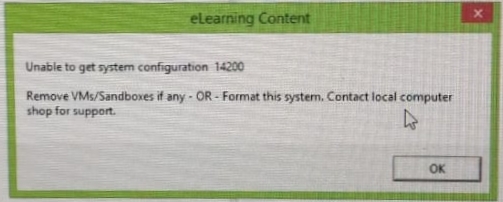
To Resolve Try:-
Goto services
Goto WMI - Windows Management Instrumentation Service
Stop the service first
Right click and select properties
Select Automatic (Delayed Start)
Then start the service again.
If not resolved, try restrating the system.
4. MP4/Codec Related - for clients using MP4 video on Windows
1) Windows VideoPlayer shows various errors before/while playing MP4 files ?
MP4 video decoding is not natively supported by most versions of Windows. To be able to play MP4 video, MP4 codec
needs to be installed on the system.
If MP4 codec is not installed Video Player might throw various errors as it would not be able to decode the video.
Secondly, MP4 videos come in various flavors/versions. The correct codec which handles the version of the MP4 file format
needs to be installed.
If a lower version of MP4 Codec is installed then Video Player might be able to play the video, BUT various
effects like the following might happen: 1) Unable to forward/rewind in the video , 2) Unable to play video
in fast motion, 3) Jerky playback, 4) Sudden stops in the video, 5) If text Overlay option is enabled - Video Player
might not be able to overlay text on video.
2) Windows VideoPlayer shows Codec Error and asks for Codec Installation Even When Codec's Are Already Installed ?
Check and make sure that the 6KR9j2.jlk matches the content set.
3) Android VideoPlayer shows "Unable to play video message" ?
Check and make sure that the 6KR9j2.jlk matches the content set.
If 6KR9j2.jlk matches the content set, then the Android device on which video playback is being attempted does not
support the features of MP4 codec chosen during compression. Arride recommends the main profile, most devices 2013
onwards support the main profile, however there is no gurantee that all devices will support the main profile.
4) Windows VideoPlayer shows error: "Incorrect version of Codec pack installed or corrupt Codec. Please re-install latest version of Codec pack. Video Player Msg 10400" ?
1) Check and make sure that the 6KR9j2.jlk matches the content set.
2) Make sure that the codec's installed on the playback PC match the encoding used during compression
of video files. This error shows because of a mismatch between video files compression and video codec already installed on the system before running Arride software.
Previously installed media players like DVD playing programs (E.g.: Cyberlink DVD player, Lenovo DVD player etc) install
their own codec with higher priority than any other codec installed on the system.
(Installation of K-Lite codec pack does not alter this higher priority.) When Arride's Video Player tries to play a video
file, the higher priority codec gets loaded. If this higher priority codec is not compatiable with the features of the
video choosen during compression then Arride's Video Player will give the above error.
Solutions:
i) Uninstall the incompatiable codec by uninstalling DVD players or other media players. Note that
media players like VLC do not install conflicting codecs. Find media players like DVD players
from Windows add/remove programs.
ii) Compress files using instructions provided by Arride (charges apply for Arride's video compression training). Although there is no gurantee of 100% compatiability, Arride's compression method is designed to be widely compatiable with generally installed codec's by Media player/DVD player software.
Thus videos compressed using Arride's suggested compression method, will play with most previously
installed codecs on Windows, requiring lesser students to install codec like K-Lite.
3) Thirdly and most importantly, this error can show if there is a mismatch between 6...jlk configuration and the videos themselves. This will happen if the 6...jlk file from one content set is copied to another content set -OR- videos from one content set are copied to another content set.
Solution: Make sure that video files from your original match the 6....jlk file from your original. Match the number stamps at the end of the videos inserted by Arride's Content Processor - so even if the video file names are the same, the number stamps will be different.
5) Video Play area in VideoPlayer shows black instead of video. Only Audio plays.
This happens even on Windows 8, 8.1 and Windows 10.
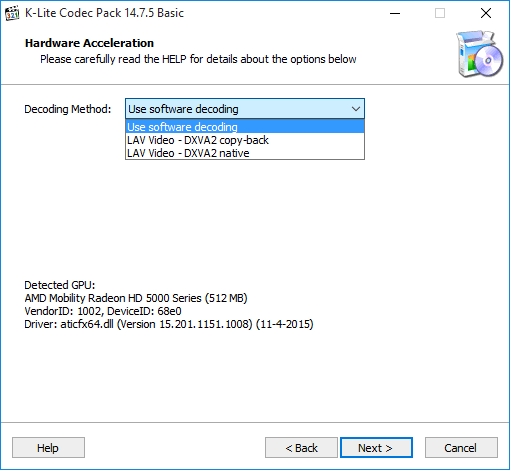
Re-install Codec and make sure to turn off 'Hardware Acceleration' of the Codec.
For example if you are using K-lite codec, on the 'Hardware Acceleration' screen
make sure that the 'Use software decoding' option is selected in the drop down.
Do Not select any other option. For example if you are using K-Lite Codec:
5. Video Player Related
1) Video Player shows error 'Heavy System Activity Message' and Stops Playing Video. Sample screen shot:
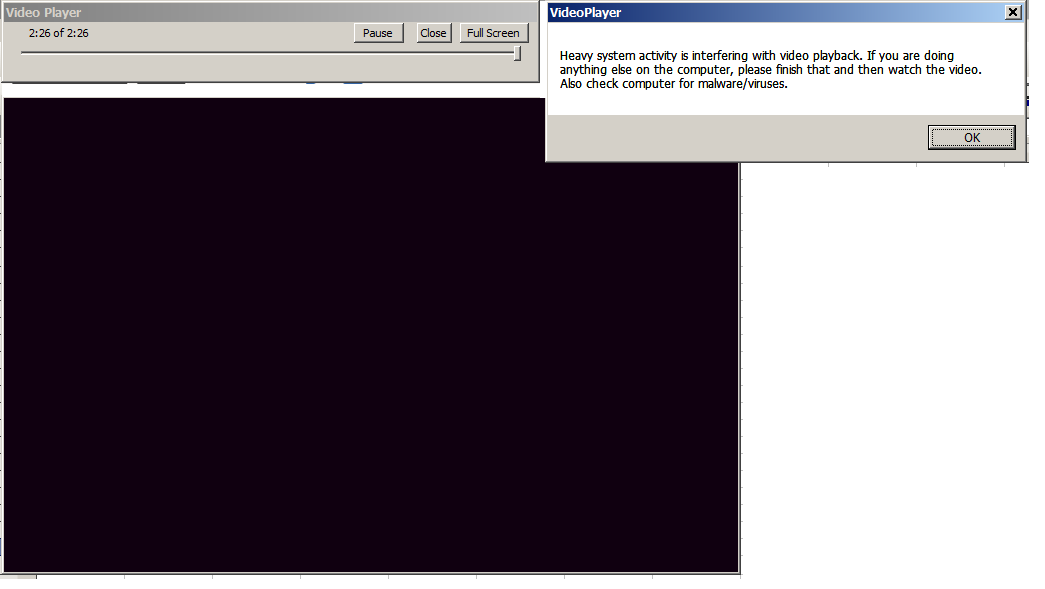
This is a Feature of Arride's Security Technology and it is there for preventing screen recording software from
recording the content. If you want to disable this feature in your deployment,
please request your Arride representative to do so.
Note that this feature is automatically turned off for deployments where number of views is limited,
as highly virus infected computers can cause heavy system activity when video is playing,
making video player stop playing as a false positive.
Background: Google search 'screen recording software' or similar terms. There are literally hundereds of screen
recording software available on the net, with new ones being released every month. These screen recording software
can be used to capture a near to source copy of the content.
Arride's Security Technology protects content on two levels:
1) Black Screen recording: On the first level Arride's Security Technology causes most screen recording software to record
a Black Screen, as seen in the screen capture above. Only audio will get captured, making the recording useless.
2) If a hacker manages to hack/break/work around the black screen recording feature, a second level security layer
in Arride's Security Technology monitors the disk writes on the computer on which the video is playing.
If a large amount of disk writing is hapenning on the system - which is typical when screen recording software
is actively recording, then the video playback stops, leaving the person recording with a 3 or 4 minute video segment.
The hacker can ofcourse start the playback again and start recording again, but now a huge amount of
work has been created for the hacker, as he will have to match each random 3-4 minute video segment shot by shot and then
merge them together, making the whole exercise too time consuming to be worthwile.
This second part sometimes gives false positives on highly infected computers, infected with multiple viruses/trojans, which are constantly thrashing the users hard disk.
The solution is for the user to clean their computer of viruses/trojans using a good anti virus like Avast, or format their computer and reinstall their operating system along with an anti-virus.
2) Variable speed playback of MP4 videos does not work properly.
Shows the following symptoms:
- Variable speed playback does not happen at all.
- Variable speed playback happens but speed changes do not take effect immediately or do not take effect at all.
- Audio/Video get out of sync at variable speed playback.
Reasons for the above hapenning could be:
i) Improper codec's installed. Install proper MP4 codecs.
ii) Videos were encoded at Variable frame rates. MP4 videos encoded at Variable frame rates do not reliably playback
at Variable speed. To playback videos at Variable speed, please ensure that videos are encoded at Constant frame rates.
To check your video encoding frame rate and lots of other info about your videos, use a tool like MediaInfo
Click here to download.
3) Video Player shows Message 9100: 'Try uninstalling current codec and re-installing the latest codec'. Sample screen shot:
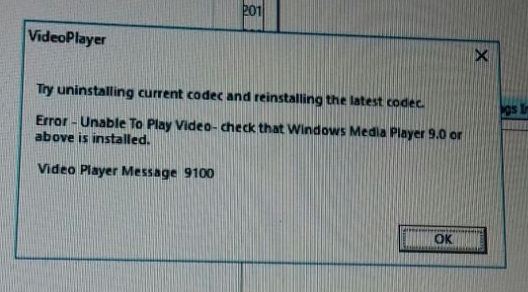
To try to resolve: first uinstall the current codec and re-install with latest codec.
If not resolved then: The msvcp71.dll and msvcr71.dll 's might be corrupted. Try replacing from backup zip or with fresh copies.
If not resolved then: Then video file might be corrupted. Give a fresh copy of the video file to the student.
4) Video plays in a narrow strip - vertical or horizontal.
To try to resolve: First uinstall the current codec. Check and Un-Install other non-LAV
codecs like DVD playing software (Cyberlink, Nero etc).
Restart the PC.
Re-install with latest codec.
If not resolved then: Check/force update video card drivers.
If not resolved then: Then video file might be corrupted. Try with a fresh copy of the video file.
5) Video Player shows Message: 'To view content please exit program: xxx . Video Player message 10500'
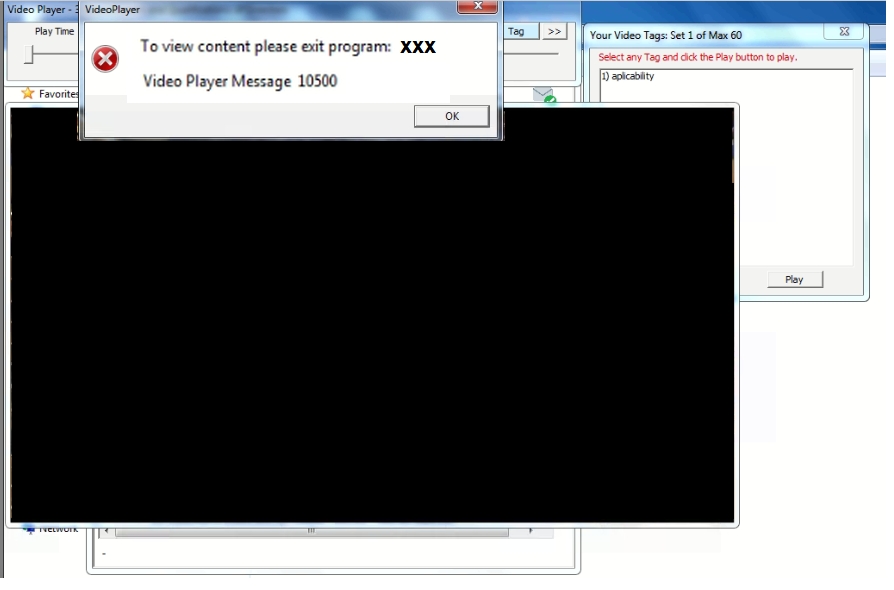
To try to resolve: Search all the drives for the program, ask the user whether it is ok to uninstall the progam, with users permission uninstall the program.
If user does not agree to uninstall the program, then ask user to format the system or change system.
6. Hardware/USB Ports related
1) Is the user using a laptop or a desktop?
Ask whether the user is using a Windows Desktop or a Laptop.
2) If Desktop which USB port is being used? One of the ones in the front or one of the ones in the back of the Desktop PC?
Some Desktop PCs have USB ports on the front. The ones on the front of the PC are
connected using wires from the motherboard to the port itself. Sometimes if the number of wires or the condition
of the wires is not proper, video playback might not happen when pen drive is connected to the front ports.
In such cases request the user to use one of the ports on the back of the PC, these are generally directly on
the motherboard and less prone to errors. Note that mice or keyboards might work on the front ports, even when
they are not in a state to support sustained reads from a pen drive.
3) Is user using a USB Hub ?
If a user is using a USB hub and facing playback issues, ask the user to try connecting to USB ports directly on
the back of the Desktop PC (if using a Desktop), or directly to the Laptops USB ports (if using a Laptop).
Similar to the wires from the motherboard issues, USB hubs especially the cheap china imports, might have
improper wiring. Note that mice or keyboards might work through a usb hub, even when
the hub is not in a state to support sustained reads from a pen drive.
Also check Device Manager to be 100% sure that there are no usb ports related issues on the PC/Laptop.
A malfunctioning USB port/USB chip inside a PC/Laptop is indicated by an exclamation mark in Device Manager.
If malfunctioning USB port/USB chip is indicated in Device Manager, then ask user to try with another USB port.
Note a malfunctioning USB chip might affect ALL USB ports on the PC/Laptop.
4) Is there a USB malfunction message showing up?
Check if Windows is poping up error messages like:
'one of the USB device attached to this computer has malfunctioned'.
These messages mean that Windows is not able to read correctly from the pen drive, thus video playback
might be affected.
Also make sure that there is no manfunctioning USB chip inside the PC/Laptop - refer notes above.
7. Technologies's DVD Version Related
1) DVD version shows the following error message.
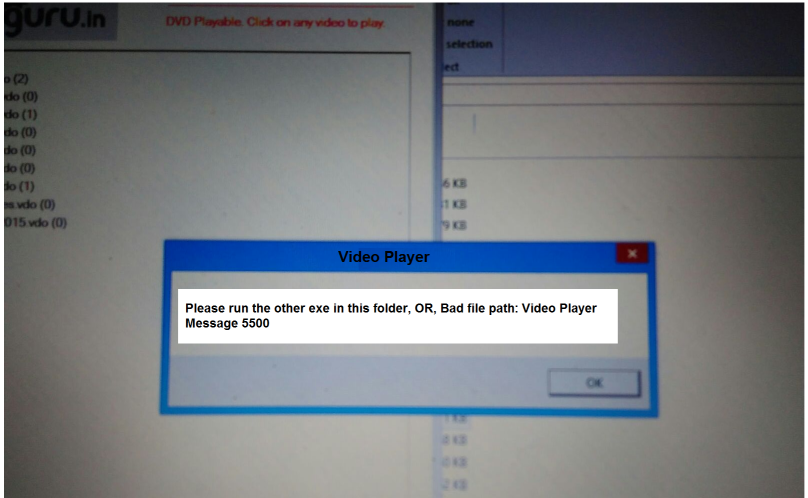 What does this error mean?
This is a time out of Arride's security technology. The technology allows 10 seconds for access of VideoPlayer.exe
and the video itself to start. A normal DVD drive should be able to access both VideoPlayer.exe and the video itself
in less than 4 seconds, so the time out of 10 seconds is sufficiently long to allow even the slower drives to access
the files.
Cause:
This error has two known causes:
1) Mechanical slowness of the DVD drive or dusty DVD drive lens, or,
2) Anti-virus software taking too long to scan Arride executables and/or video files themselves
Background:When a user clicks on a video to play, Windows requests the DVD drive to start spinning
and read the VideoPlayer.exe and then the video file from the DVD.
The following issues could occur:
i) Reading of a DVD by a DVD drive is done by a mechanical setup. The motor needs to start spinning and
the reading lens needs to be moved to the right position to start reading the file/s.
The movement of both these items could be slow or might throw errors.
ii) Once the DVD drive motor is spinning and the lens in the proper position to read the file,
the next step is for the lens to read the file optically. If the lens is dusty it might take
very long for the drive to read the file or the lens reading mechanism might throw errors.
iii) Anti-virus software on the system attempts to scan VideoPlayer.exe and/or the video file
on every access. If the anti-virus software takes longer than 10 seconds to scan Arride's
executables and/or the video file itself, then this triggers a time out of Arride's security
technology.
Possible Solutions:
i) Try on a different PC with a different DVD drive.
ii) If you have a another DVD drive, attach it to the same PC and try with it.
iii) Replace the DVD drive.
iv) Disable anti-virus software and add Arride's executables to the exclusion or
trusted list of the anti-virus software.
2) Bad Config File or Config File Not Found Error Message
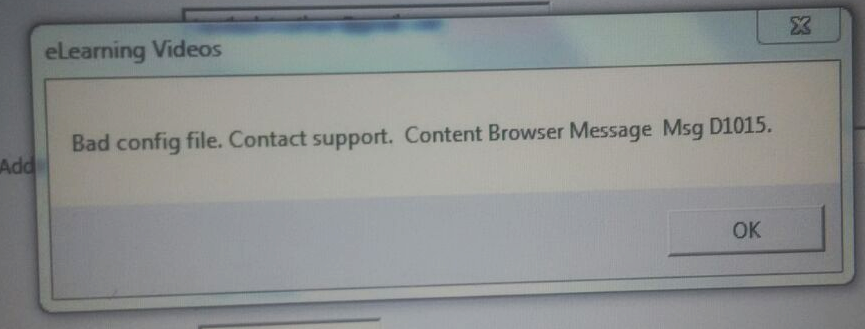 Reason
Content Browser is not able to load the link file (.jlk extension). The cause is DVD disk/DVD drive related.
The DVD drive might not able to read the link file off the DVD Disk for any of the following reasons:
1) Drive's laser head is dusty or has low laser strength
A bad or dustry DVD drive might read some parts of
a DVD and not other parts of the same DVD. If the part where the drive is not able to read falls where
the link file (or files on the DVD) are written on the DVD disk,
then the drive will not be able to read the link (and the other) files.
2) Drive is mechanically poor.
To be able to read files from a DVD disk, a drive has to be able to position
the drive's head within a tolerance of less than half a millimeter. If the drive is mechanically
poor ( meaning very old, jammed by not being used in a long time, has dust in its mechanical parts etc), it
will not be able to position its head exactly at the place where the link file (or any other file) is located
and thus will not be able to read the file/s.
Diganosis / Solution
1) Ask user to clean the drive (including drive's head) either themselves or from a local computer shop and try again.
2) If cleaning the drive does not work, then ask user to buy a blank DVD from the market and
burn a few files from their computer to it. Then try to read the DVD disk in a different DVD drive
on another computer. If this does not work, then it indicates a bad drive.
3) Ensure that you are burning DVDs at 8X Speed. Most DVD Disk's and Burner's claim to burn at 36x or even 48x,
but real world results obtained by burning at these speeds shows that Disks burned at high speeds need
DVD drives in very good optical and mechenical condition to read.
3) Internet Connection Not Working Error Messages
-
During activation Content Browser shows: Error - InternetOpenUrl() Content Browser Message Fatal 3500
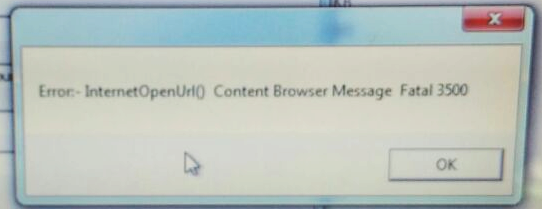
This message generally shows up if Internet access is NOT working from Internet Explorer
browser - it Does Not Matter that Internet access IS working using other browsers like
Chrome or Firefox.
Resolution: Ask user to get Internet access working in Internet Explorer browser.
Arride Cannot help in fixing this issue on users computer. In general the various
things to check are Proxy settings and firewall setttings.
To check whether internet access is working in Internet Explorer:
Open Google News check the date and time
of the news items showing - these dates and times should be current within the last 2 hours.
Next click on 5 or 6 news item links which lead to different newspaper websites and verify that
news paper websites are opening and showing the news item clicked on.
Note that just the Google News home page showing up DOES NOT mean that Internet access is working
in Internet Explorer, as Internet Explorer could be showing an old cached version of the page. To eliminate this possibility
open 5 or 6 actual news links, which will force Internet Explorer to connect to the internet and show
the respective news paper website/s.
Make sure that websites open on FIRST Click of a link or First time after typing the website addres
in Internet Explorer address bar like: Yahoo.com, Facebook.com etc. If it takes a double enter or a
double refresh to get a website to open, something is wrong with Internet Explorer. Get it fixed from
your local computer mechanic.
Check tool bars/ad bars like yahoo toolbar, bonzy buddy etc. These interfere with internet access in
internet explorer. Uninstall tool bars.
8. Errors indicating bad recording/physical damage in the DVD/Pen Drive/Hard Drive
1) Error performing inpage operation.
A message like the following shows up when running any of Arride's Exe's:
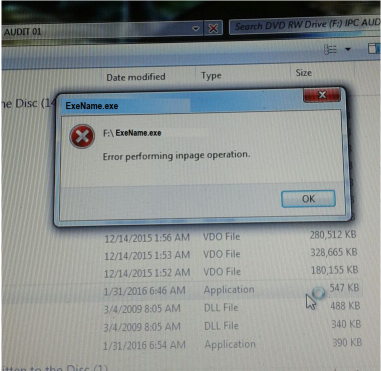
This is a Windows error. Windows shows this error when it is unable to read from the media. This indicates
errors in the DVD/Pen Drive. Google search for: "Error performing inpage operation" for more details.
If this error is being shown from a pen drive, recovery might be possible by running the Chkdsk command.
See results from the above Google search for the Chkdsk command to run.
2) A 'Not a valid Win32 Application' message shows up for any of Arride's Executables, e.g.:
FileName.exe ( or VideoPlayer.exe ) is not a valid Win32 Application.
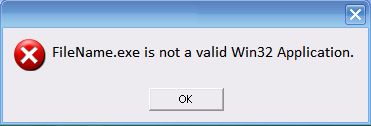
This error shows up if the exe is not written to the media (DVD/Pen Drive) correctly and thus
Windows is not able to load the exe. Solution is to recopy/rewrite the exe onto the media.
Note: That if the exe was not properly written to the media, then the Video files themselves
might Not have been properly written to the media. So even after copying/writing the
exe to the media, there might be problems in playing one or more video files.
3) Application Error: 0xc0000006 . "The application was unable to start correctly (0xc0000006).
Click OK to close the application."
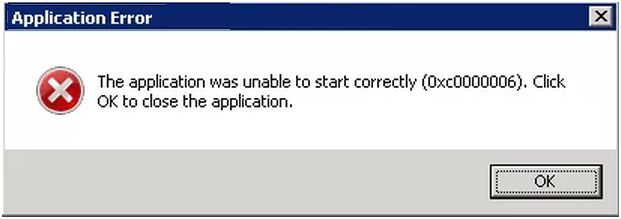
This indicates a read error from the media which could be: DVD/Pen Drive/Hard Drive whether internal or external.
Run chkdsk on the media if not a DVD. Note that other files besides Arride's executables might have gotten
damaged as well. Thus even if you are able to recover Arride executables, you might experience other problems
while viewing content like dropped segments, jerky playback etc.
9. All Other Errors
1) Please check/set PC Date/Time to Current Date/Time. Make sure Time Zone set on PC matches Date/Time. Time should be in AM/PM format NOT 24 hour format. Message 5300.
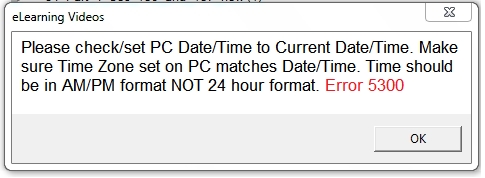
This error shows up when a user has rewinded their PCs date backwards in time.
This can happen if:
1) The users PC date "accidently" went ahead into the future and the user rewinded it to the correct current date.
- OR -
2) A user tries to rewind their PCs date into the past to try to extend expiry.
Solution:
You can use the Reset Tools - 'Reset Time Monitoring' option to reset this, BUT before
that be sure to check whether the user's PCs actual date/time is near about the current date/time,
to ensure that the user is not trying to rewind PC date into the past.
10. Errors Related To Franchisee Version
1) Following error shows up when uploading camera snaps to AWS Cloud.
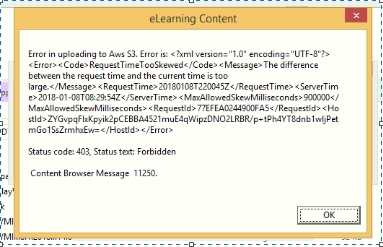
This error shows up due to mismatch of Time Zone and time on the PC.
To resolve:
1) Make sure that the time zone and date time on the PC match.
2) Make sure that the date time on the PC is within 5 minutes of the actual current date time.
10. Errors Related To Android Version
1) Following error shows up on running Android app.
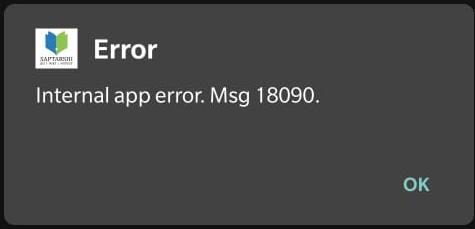
This error shows up due to existing app/apps already installed on the phone trying to attack Arride app.
To resolve:
Looks for apps used by hackers like: lucky patcher, 2 mini miltia hacked YR&Y, Taichi, Flagsecure etc.
and uninstall them.
Bascially look for any fishy apps which are normally not installed by normal mobile users and uninstall them.